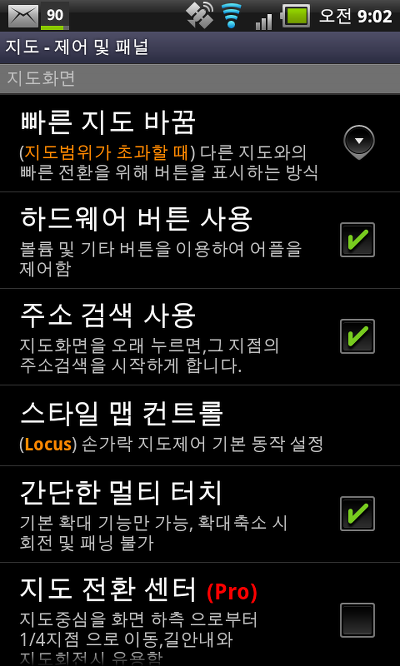
Quick switch button – settings for display button “Map manager” for faster and easier work with the map. The button appears in the upper left corner of the map screen. It is used to centre the map, when you get outside of the map on the screen. Also used for a quick switch between the closest and last displayed map.
빠른 전환 버튼 - 지도와 함께 빠르고 쉽게 지도 관리자 표시버튼을 설정. 버튼은 지도화면의 좌상단에 나타난다. 화면에서 지도의 바깥으로 나갈 때, 지도를 중심으로 이동하는데 사용된다. 또한 밀착된 지도와 마지막으로 표시된 지도 사이의 빠른 전환을 위해 사용된다.
- Never – the button never appears and it is not possible to use the options of the Map manager
- Out of map – button appears only if you’ll be outside of a map, allows quick centring or a map change
- Always – button is always visible on the screen
Use hardware buttons – hardware buttons which control volume, can be also used to zoom the map. Tip: Ideal for use on cold days, there is no need to take your gloves off
하드웨어 버튼 사용 - 음량을 제어하는 하드웨어 버튼는 지도의 줌 변경에 사용된다. 팁: 추운 날에 사용할 경우, 장갑을 벗을 필요가 없다.
Enable address search – online search for an address when clicked on the map at length. This feature may not be suitable for users of less advanced phones.
주소검색 가능 - 길게 지도을 클릭하면 온라인으로 주소검색이 가능하다.
The style map control - allow to choose method, how to control a basic functions on the map screen by fingers
스타일맵 제어 - 손가락으로 지도화면에서 기본기능을 제어하는 방법을 허용한다.
- Locus - double tap: show hidden buttons on the map screen
- 로커스 - 더블 탭 : 지도화면에 숨겨진 버튼을 보여준다.
- Google - double tap: zoom in; two finger tap: zoom out; three finger tap: show hidden menu
- 구글 - 더블탭 : 줌인; 두 손가락 탭 줌 아웃; 세 손가락 탭: 숨겨진 메뉴 보이기
Simple multi-touch – you can use either a simple multi-touch setting, i.e. two fingers on the map to control zoom, or you can set multi-touch to zoom and rotate the map at the same time.
단순한 멀티터치 - Automatic Zoom-lock - imagine you zoom in, till max zoom level for selected map. With this enabled, Locus will automatically trigger zoom lock when you'll want to zoom it. - till 2.19.0, setting moved to configuration file as map_automatic_zoom_lockparameter
Shift map center – setting enables movement of the map center down by 1 of the screen length. This is particularly useful for the navigation feature when used together with map rotation, in order to view a maximum map area ahead of you.
지도 중심 이동 - 설정은 화면 길이의 1/4 만큼 밑으로 지도중심의 이동을 가능하게 한다, 이 기능은 특별히 당신 앞의 최대 지도 면적을 보기 위해 지도회전과 함께 길안내 항법을 이용할 때 유용한다,
Hold center method – after 5 seconds of inactivity the map returns to your actual GPS position on the centre of the screen.
중심잡기 방식 - 활동없이 5초후에 지도는 화면의 중심으로 실제 GPS의 위치로 돌아간다.
Map screen – panels
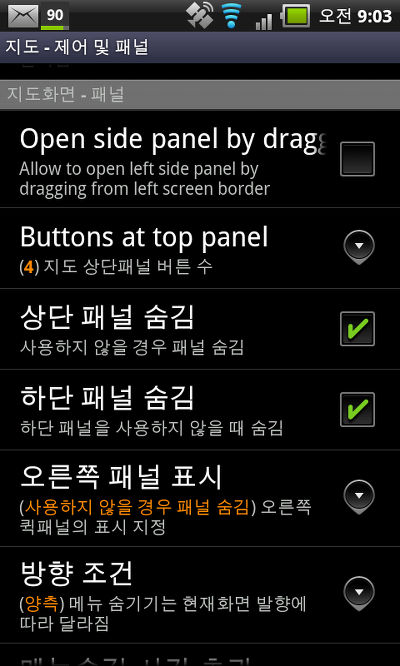
지도 화면 - 패널Open side panel by dragging - main menu is now implemented as left side panel. This settings allow to draw this menu by gesture from left screen border.
드래그로 측면패널 열기 - 왼쪽 패널로 주메뉴를 실행할 수 있다. 이 설정은 왼쪽 화면 경계의 제스처로 이 메뉴를 꺼낼 수 있다.
Buttons at top panel - define number of buttons in top panel. A lot of buttons reduce size of information panel.
상단 패널에 버튼 수 - 상단 패널에 버튼 수를 정의. 많은 수의 버튼은 정보패널의 크기를 감소시킨다.
Top panel hiding – this enables to hide top panel if inactive for a while. To display it again, double-click on the map screen (three finger tap, if you set “style map control” to “Google”).
상단 패널 숨기기 - 한동안 액션이 없으면 상단 패널을 숨긴다.
다시 보려면, 지도화면을 더블클릭한다.
Bottom panel hiding – this enables bottom panel to be hidden if inactive for a while. To display it again, double-click on the map screen (three finger tap, if you set “style map control” to “Google”).
하단 패널 숨기기 - 한동안 액션이 없으면 상단 패널을 숨긴다.
다시 보려면, 지도화면을 더블클릭한다.
Right panel visibility – set the visibility of the right panel on the map screen.
오른쪽 패널 보기 - 지도화면에서 오른쪽 패널을 볼 수 있게 설정한다.
- Always hidden - never show right panel
- Hide right panel if inactive for a while – hide after preset period of inactivity
- Never hide – never hide right panel
- 항상 숨기기 - 오른쪽 패널을 결코 보여주지 않는다.
- 한동안 액션이 없으면 오른쪽 패널을 숨긴다 - 미리설정한 기간동안 액션이 없으면 메뉴를 숨긴다,
- 결코 숨기지 않는다 - 오른쪽 패널을 결코 숨기지 않는다.
Orientation condition - allow to choose hiding menu in depending of the screen orientation. It can be combined only with set “Hide right panel in period of inactivity”
방향 조건 - 화면 방향에 따라 숨겨진 메뉴를 선택한다. "액션이 없는 기간 동안 오른쪽 패널을 숨기기"을 설정한다.
- Both - always to hide the right panel
- Landscape mode - hide the right panel only when the screen rotation is to landscape mode
- Portrait mode - hide the right panel only when the screen rotation is to portrait mode
- 양쪽 - 언제나 오른쪽 패널을 숨긴다.
- 가로모드 - 화면 회전이 가로모드일때 오른쪽 패널을 숨기기
- 세로모드 - 화면 회전이 세로모드일때 오른쪽 패널을 숨기기
Hide menu timeout - set the time for hide inactivity of the right panel in second. For restore use double tap.
메뉴 숨기기 경과시간 - 잠시 오른쪽 패널의 액션이 없을 때 숨기기할 시간 설정. 복구하려면 더블 탭하기