What do all the buttons on a scientific calculator do?
http://m.wikihow.com/Operate-a-Scientific-Calculator
http://www.mathopenref.com/calcinstructions.html
● Ten to the power x = 10x = pow(10,x) = Ten raised to the power x.
● x squared = x2 = x^2 = x raised to the power 2.
■ How to Operate a Scientific Calculator
Scientific calculators are incredibly important and efficient when you start getting into higher-level math, but they can be daunting to look at for the first time. To operate a scientific calculator, learn the most important functions and practice inputting information in the correct order. Before you go into your first test, make sure that you know where everything is and how to perform the functions you need.
Steps
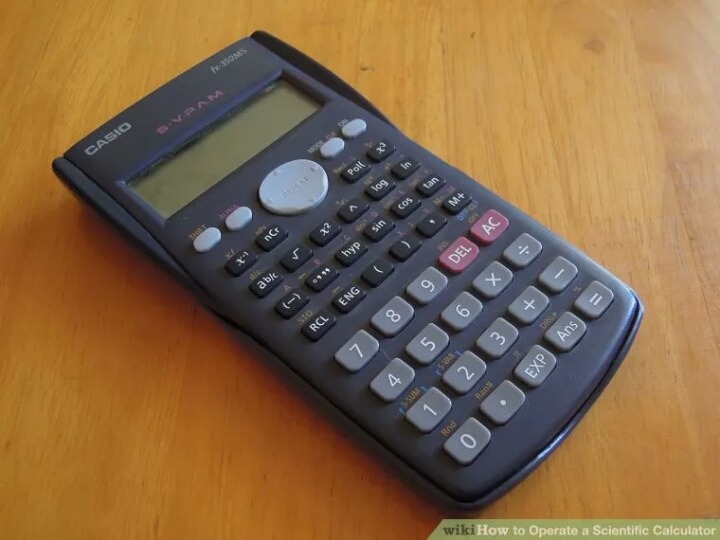
1.
Find the important functions. There are several functions on the calculator that will be essential for Algebra, Trigonometry, Geometry, Calculus, and more. Find the following functions on your calculator (the labels may vary). Some functions may require you to press the Fn or Shift button to access them:
Basic Operations[1]
Operation Function
+ Addition
- Subtraction (not negative)
x Multiplication (There is often an x key for variables as well)
÷ Division
^ Raise to the power of
yx y to the power of x
√ or Sqrt Square root
ex Exponential
sin Sine function
sin-1 Inverse sine function
cos Cosine function
cos-1 Inverse cosine function
tan Tangent function
tan-1 Inverse tangent function
ln Log to the base of e
log Log base 10
(-) or neg Denotes negative number
() Parentheses for denoting order of operations
π Inserts pi
Mode Switches between degrees and radians
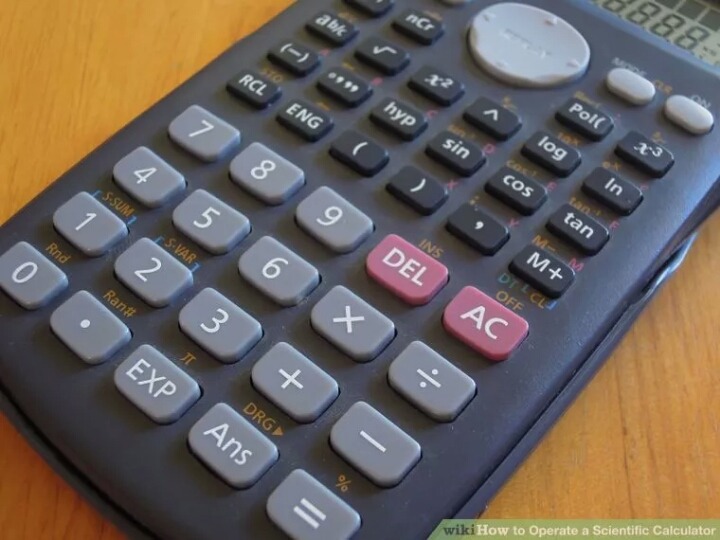
2.
Determine what order you need to press the keys. For a lot of the function keys, you will be performing them on numbers you input. Some calculators will perform the function on a number you've already entered, while others will perform it on the next number that is entered.
3.
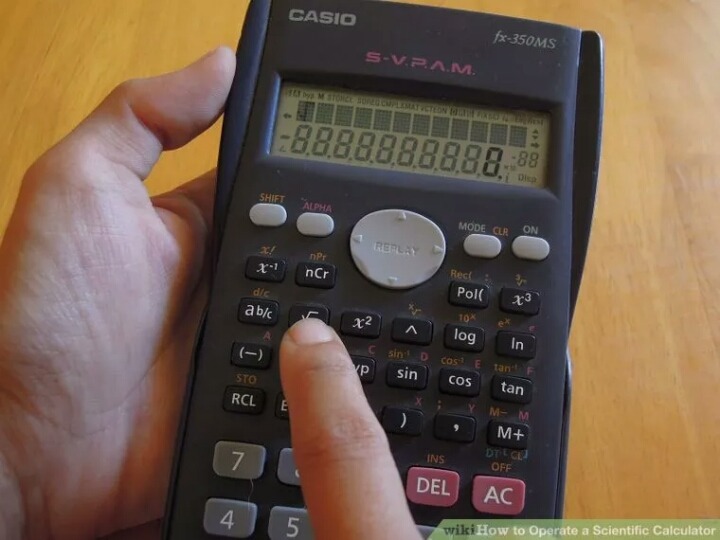
Try a simple square root. Test out the button order on an easy and quick problem. For example, try taking the square root of 9. You should already know that the answer will be three, so this is a great tip to use in the middle of a test if you forget which order you're supposed to be pressing buttons.
Press 9 and then the checkmark key. If nothing happens, press the checkmark key and then press 9.
Some calculators will add parentheses to the calculation, such as √(3. You will need to add the closing parenthesis ) before completing the calculation.
You may have to press the equals key to see the results.
4.
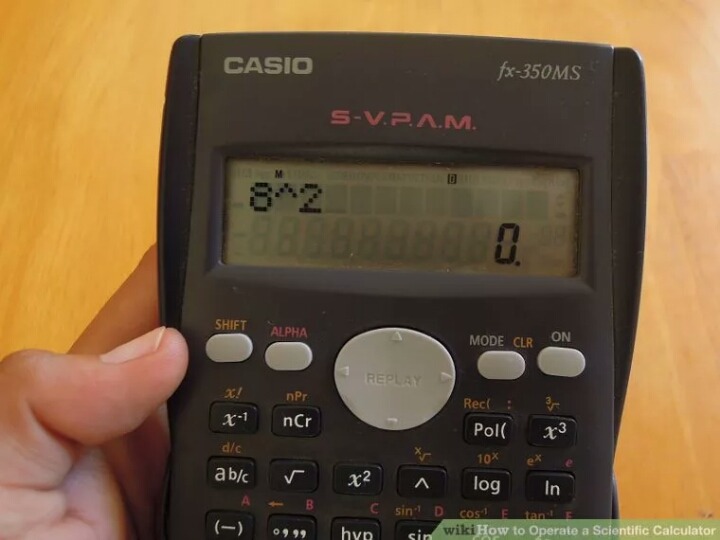
Take the power of a number. Another good test for button order is using the yx function. Since it involves two numbers, you'll want to ensure you know which order they go in. Try performing a simple test, such as 23. If you get 8 as the answer, then you did it in the right order. If you got 9, then you actually did 32.
5.
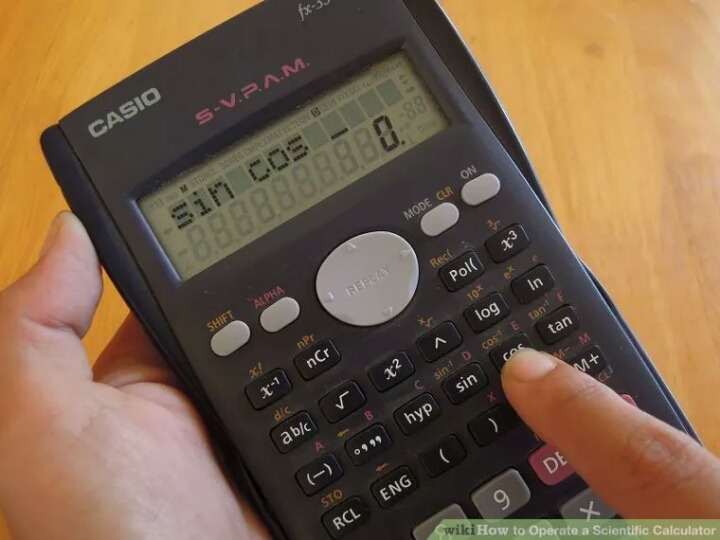
Practice the trigonometry functions. When you are using the SIN, COS, or TAN functions, you will have to keep in mind two different things: the order of the button presses, and radians versus degrees.
Perform a simple SIN function with an easy to remember answer. For example, the sine of 30° is 0.5. Determine if you need to enter 30 first or press sin first.
Check your answer. If you get 0.5, then your calculator is set to display in degrees. If your answer is -.988, then your calculator is set to radians. Look for the Mode button to switch.
6.
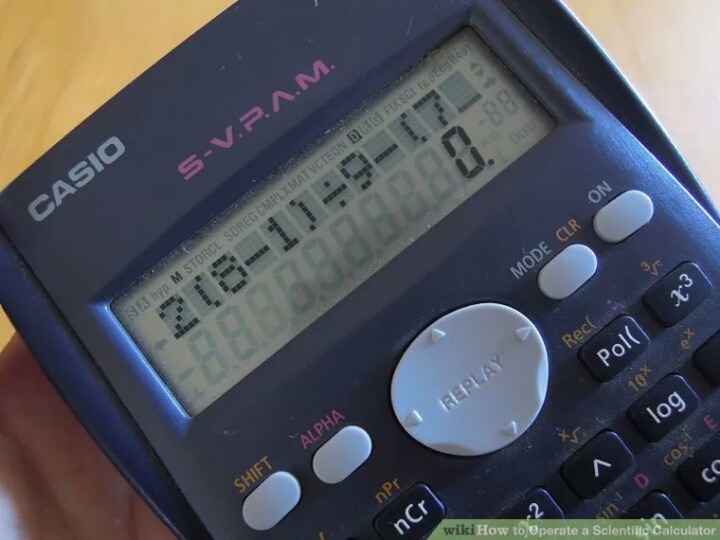
Practice entering longer equations. Things can get a bit more complicated when you start entering longer equations into your calculator. You will need to take order into consideration, and will often make use of the () keys. Try entering the following equation into your calculator: 3^4/(3+(25/3+4*(-(1^2))))
Note how many parentheses are necessary to keep the formula intact. Proper parentheses use is essential to successfully using the calculator
7.
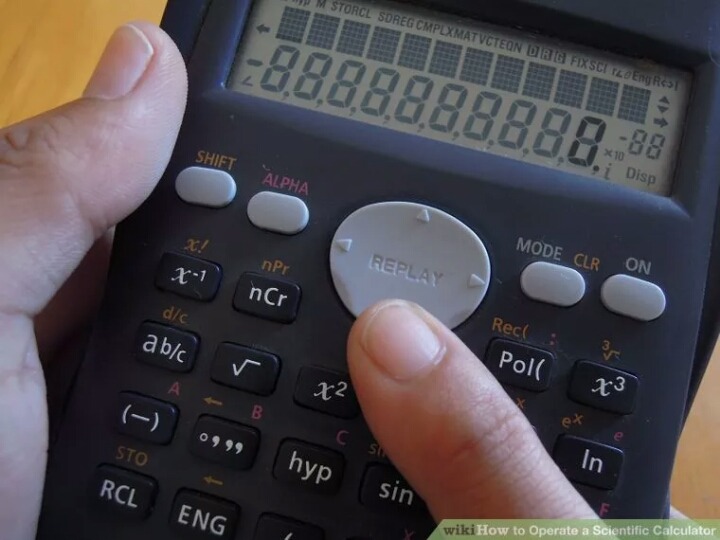
Learn how to save and restore. Saving your results and pulling them back later is an essential skill for dealing with longer problems. There are a couple of different ways to use stored information:
Use the Answer key to recall the last displayed answer to an equation. For example, if you just entered 2^4, you could subtract 10 from that result by pressing ANS + - + 1 + 0.
Use the M+ or STO (Store) keys to add values to the calculator memory. You can then use the REC or MR keys to recall that value from the memory for use in an equation.[2]
■ Community Q&A
● How do I square something? Answered by wikiHow Contributor
Type the number you want to square and then press the "x2" button (small 2 on upper right of the x). If the calculator doesn't have such a button, you just have to multiply the number times itself (e.g., 13x13).
● How do I use pi? Answered by wikiHow Contributor
There is button on your calculator that tells you the value of pi. It is marked with the Greek letter pi, which has two legs and a flat top like the bottom half of a capital H. If you want to calculate the approximate value of pi without pressing the pi button, it is about 22/7.
● How do I change the sign (+/-) of an answer? Answered by wikiHow Contributor
You press the minus button (not the one near the equals button) which is inside brackets on one button.
● What are the functions of a calculator? Answered by wikiHow Contributor
A scientific calculator can calculate angles using sine, cosine, and tangent. It can change the a number from decimal to hexadecimal or octal. It can also solve equations. Some scientific calculators allow you to store your own formula as well. Most are capable of calculating fraction, index and root.
● How do I use the log function on a scientific calculator? Answered by wikiHow Contributor
The log is the inverse function of raising a number by a power. It takes the input number (base) and the
output number and calculates which number the base must be raised to the power of to produce the output -- e.g. x^n=y --> logy(x) = n (the y would be given in subscript) and this is stated "Log base y of x equals n." If you have a modern calculator, there should be a log button with two blank rectangles allowing you to input the base and the output to find the power. On an older calculator, however, you will need to use a "log-law" to convert it into an equation involving the log function (meaning log base 10). Do this by typing logy/logx to give answer n.
