|
C#과 Excel |
소요 시간 : |
13/05/03 4시간 |
|
DB데이터를 GridView로 보여준 후 Excel로 저장 |
작성자 : |
이후용 |
|
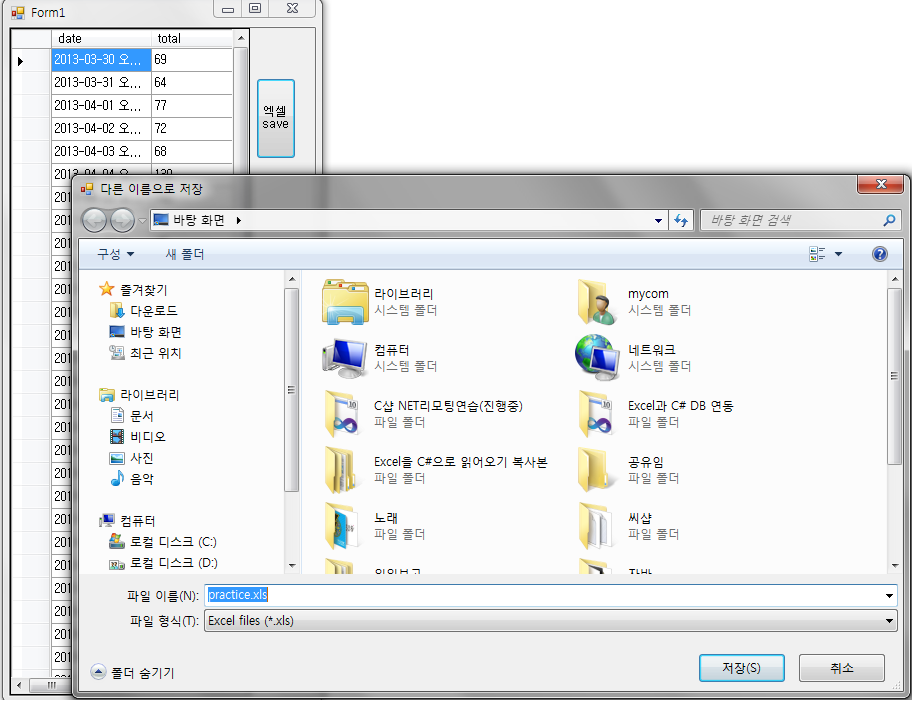
[실행 후 버튼 클릭시] |
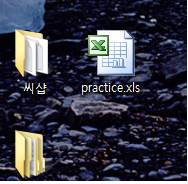
[저장 후 폴더 생김] |
|
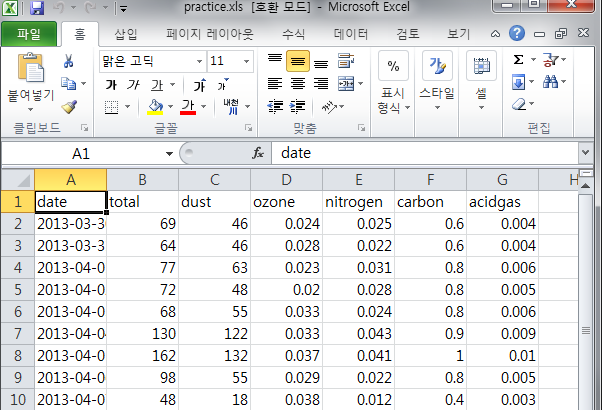
[Excel에 DB내용 들어간 것 확인] | |
|
Form1.cs |
|
using Excel = Microsoft.Office.Interop.Excel;
public Form1() { InitializeComponent();
string sqlstr = @"Data Source=BIT24\BIT58PC;Initial Catalog=ProjectA;User ID=sa;Password=1"; SqlConnection conn = new SqlConnection(sqlstr); conn.Open(); SqlDataAdapter sda = new SqlDataAdapter("select * from Environment", conn);
DataSet ds = new DataSet("pTable"); sda.Fill(ds, "Environment");
dataGridView1.DataSource = ds.Tables["Environment"]; }
|
|
Microsoft.Office.Interop.Excel 라이브러리를 추가한다.(.NET부분에서 버전 12.0으로) 엑셀변환할 때 쓰이는 Microsoft.Office.Interop.Excel 를 매번 쓰기 번거로우므로 Excel로 사용하자고 약속하자. MS SQL에 연결한 후 DataSet을이용하여 새로운 pTable을 생성하여 MS SQL에 만들어 놓은 Environment 테이블의 데이터들을 pTable에 채운다. DataGridView에 그 데이터들을 넣어 보여준다. |
|
private void button1_Click(object sender, EventArgs e) // DataGridView를 Excel파일로 저장 { Excel.Application app; Excel._Workbook book; Excel.Workbooks books; Excel.Sheets sheets; Excel._Worksheet sheet; Excel.Range range; SaveFileDialog sfd = new SaveFileDialog(); sfd.FileName = "practice"; sfd.DefaultExt = "xls"; sfd.Filter = "Excel files (*.xls)|*.xls"; sfd.InitialDirectory = "Desktop\\";//"C:\\";
DialogResult result = sfd.ShowDialog(); |
|
버튼을 하나 생성하여 Excel 데이터를 넣기 위한 위의 6가지를 선언한다. 저장할 때 사용자가 위치를 정할 수 있게 SaveFileDialog를 생성해 주었다. 본인은 저장할 때 임의로 이름을 practice로 하였고 excel파일이기 때문에 임의 확장자는 xls로정하였으며 ‘파일형식으로 저장’하는 필터는 위와 같이 적어주고 기본 저장위치는 바탕화면으로 하였다. 그리고 저장 다이얼로그를 화면에 나타내준다. |
|
if (result == DialogResult.OK) { int n = 0; object mtype = Type.Missing; string[] title = new string[dataGridView1.ColumnCount]; string[] price = new string[dataGridView1.ColumnCount];
for (int i = 0; i < dataGridView1.ColumnCount; i++) { title[i] = dataGridView1.Rows[0].Cells[i].OwningColumn.HeaderText.ToString(); * n = i + 65; price[i] = Convert.ToString((char)n); }
try { app = new Excel.Application(); books = app.Workbooks; book = books.Add(Missing.Value); sheets = book.Worksheets; sheet = (Excel._Worksheet)sheets.get_Item(1);
if (true) { for (int i = 0; i < dataGridView1.ColumnCount; i++) { range = sheet.get_Range(price[i] + "1", Missing.Value); range.set_Value(Missing.Value, title[i]); } }
for (int i = 0; i < dataGridView1.RowCount - 1; i++) { for (int j = 0; j < dataGridView1.ColumnCount; j++) {
range = sheet.get_Range(price[j] + Convert.ToString(i + 2), Missing.Value); range.set_Value(Missing.Value, dataGridView1.Rows[i].Cells[j].Value.ToString()); } } app.Visible = false; app.UserControl = false;
book.SaveAs(@sfd.FileName, Excel.XlFileFormat.xlWorkbookNormal, mtype, mtype, mtype, mtype, Excel.XlSaveAsAccessMode.xlNoChange, mtype, mtype, mtype, mtype, mtype); book.Close(false, mtype, mtype); Cursor.Current = Cursors.Default;
MessageBox.Show("저장됨."); } catch { MessageBox.Show("에러다."); } } } |
|
*표 부분에 n=i+65라고 하였는데 65미만은 애러가 나며, i+66부터 수를 올려서 엑셀 저장된 파일을 보면 A열부터 나열되지 않고 그뒤로 나열된다. 그리고 97은 다시 65와 같은 위치로 나열되어 저장된다. |
|
:: Excel에 데이터가 들어가는 방법들을 공부하고 보게 된다면 좀 더 쉽게 구현할 수 있을것이다. |
|
* 참고사이트 : http://support.microsoft.com/kb/302084/ko와 http://tysite.tistory.com/53 |
|
* 안된 부분 : Excel 구버전인 .xls로는 저장 후 볼 수 있지만 신버전인 .xlsx로 저장 후에는 파일을 열 수 없다고 뜬다.(직접 확장자를 x로 바꾸어 주면된다) |